







 https://yearbookdiscoveries.com/wp-content/uploads/2023/08/Picking-theme-Blog-Header-1.png
596
1154
VARSITY YEARBOOK
https://yearbookdiscoveries.com/wp-content/uploads/2024/03/Varsity_Yearbook_V-braid-1-1.png
VARSITY YEARBOOK2023-09-23 09:29:272024-04-11 13:53:14Adviser Takeover: I didn’t know that I didn’t know.
https://yearbookdiscoveries.com/wp-content/uploads/2023/08/Picking-theme-Blog-Header-1.png
596
1154
VARSITY YEARBOOK
https://yearbookdiscoveries.com/wp-content/uploads/2024/03/Varsity_Yearbook_V-braid-1-1.png
VARSITY YEARBOOK2023-09-23 09:29:272024-04-11 13:53:14Adviser Takeover: I didn’t know that I didn’t know.yearbook curriculum
Divided into the categories you teach, our printed workbooks and online resources cover every aspect of yearbooking — from theme to writing to design to sales.
Great stuff for your staff
From staff T-shirts to materials that support your yearbook program, this is the spot for the stuff. You’ll find lots of ways to celebrate your students’ accomplishments and get gear for the year.
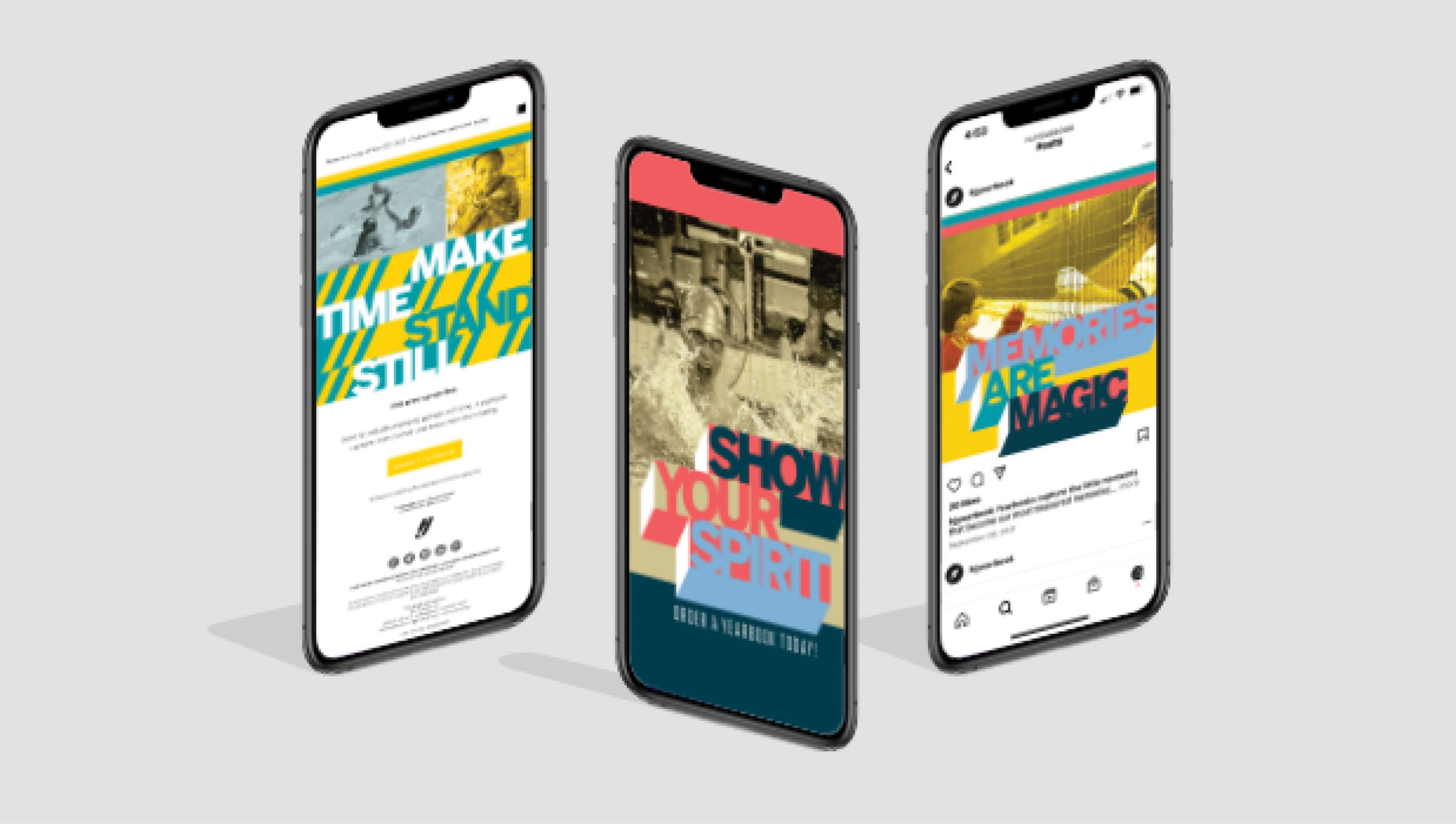
BOOK SALES MADE EASY
Are your book sales lagging behind? No worries, we’ve got you covered. Learn more about our automated sales program.
SEE YOU AT AN EVENT?!
Wondering what scholastic journalism conventions are all about? Take a look at our new video and get excited for upcoming conventions and workshops. Get the details here.